C# / ASP.NET
In this chapter, you’ll integrate Oicana into a C# web service using ASP.NET Core. ASP.NET Core is Microsoft’s modern, cross-platform framework for building web applications and APIs. We’ll create a simple web service that compiles your Oicana template to PDF and serves it via an HTTP endpoint.
Let’s start with a fresh ASP.NET project by executing dotnet new webapi in a new directory. The starter project has a single endpoint defined in Program.cs and exposes the OpenAPI document at /openapi/v1.json, but no interactive UI is bundled by default. To get an API explorer, add Scalar with dotnet add package Scalar.AspNetCore and wire it up in Program.cs next to the existing OpenAPI calls:
using Scalar.AspNetCore; // <-- new
// ...
if (app.Environment.IsDevelopment()){    app.MapOpenApi();    app.MapScalarApiReference(); // <-- new}
Start up the service (dotnet run) and open the URL printed in the terminal followed by /scalar. Expand the /weatherforecast endpoint, press “Test Request”, then “Send”. This will send an HTTP request to the running ASP.NET service and return made up weather data.
New service endpoint
Section titled “New service endpoint”We will define a new endpoint to compile our Oicana template to a PDF and return the PDF file to the user.
-
Create a new directory in the .NET project called
templatesand copyexample-0.1.0.zipinto that directory. Then tell MSBuild to ship it, otherwisedotnet publishleaves it behind and the published app fails at startup:Part of your .csproj <ItemGroup><Content Include="templates\**" CopyToOutputDirectory="PreserveNewest" /></ItemGroup> -
Add the
OicanaNuGet package as a dependency withdotnet add package Oicana. -
Add the Oicana usings next to the
using Scalar.AspNetCore;you already have at the top ofProgram.cs:Top of Program.cs using System.Text.Json.Nodes;using Oicana.Config;using Oicana.Inputs;using Oicana;Then read the template file and prepare it for compilation, above
var builder = WebApplication.CreateBuilder(args);:Part of Program.cs var templateFile = await File.ReadAllBytesAsync(Path.Combine(AppContext.BaseDirectory, "templates", "example-0.1.0.zip"));var template = new Template(templateFile); -
Replace the generated
/weatherforecastendpoint with the following:Part of Program.cs app.MapPost("/compile", () =>{var stream = template.Export(new Dictionary<string, JsonNode>(),new Dictionary<string, BlobInput>(),ExportFormat.Pdf(),new CompilationOptions(CompilationMode.Development));var now = DateTimeOffset.Now;return Results.File(fileStream: stream,contentType: "application/pdf",fileDownloadName: $"example_{now:yyyy_MM_dd_HH_mm_ss_ffff}.pdf");});This code defines a new POST endpoint at
/compile. For every request, it compiles the template to PDF with two empty input dictionaries and returns the file. We useCompilationMode.Developmenthere to demonstrate how the template falls back to the development value you defined for theinfoinput ({ "name": "Chuck Norris" }). In a later step we will explicitly set a value for the input.
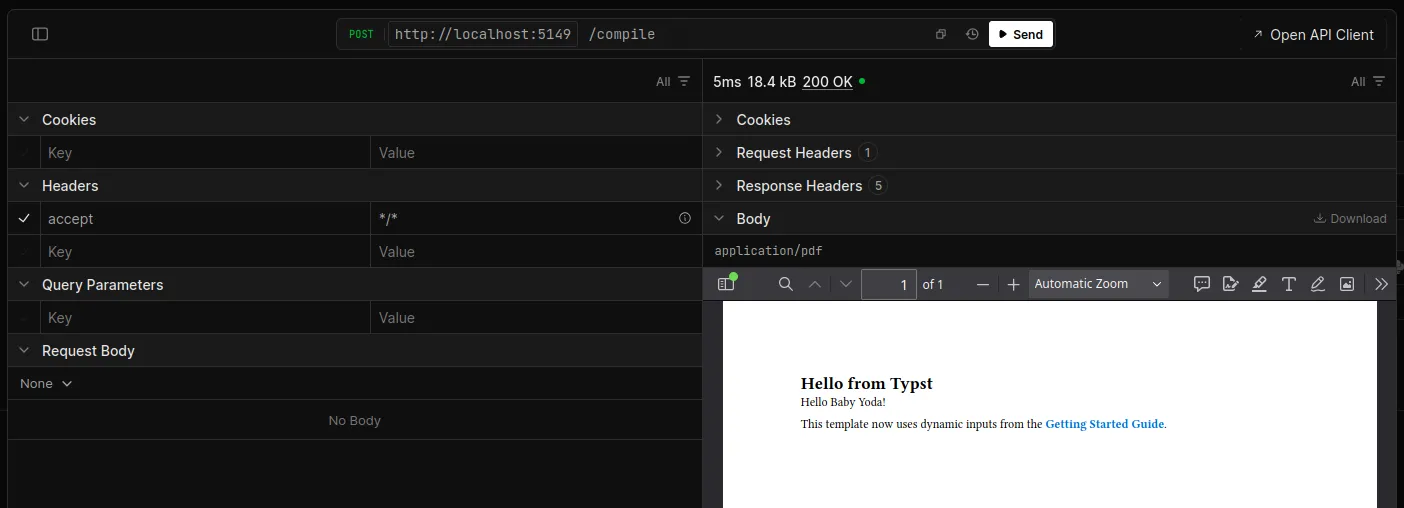
After restarting the service and refreshing the Scalar UI, you should see the new endpoint. Click “Test Request” and “Send” to get a preview of the returned PDF file.
About performance
Section titled “About performance”The PDF generation should not take longer than a couple of milliseconds. You can look at the request duration in the network tab of your browser’s debugging tools for an estimation. The first request to an ASP.NET service can be significantly slower than later ones, because ASP.NET does some preparation during the first request.
For a better measurement of the compilation speed on your machine, you can use a Stopwatch in the endpoint code.
Passing inputs from C#
Section titled “Passing inputs from C#”Our compile endpoint is currently calling the template’s Export method with empty dictionaries. This compiles the template without any explicit inputs. The first dictionary could contain JSON inputs (key to JsonNode) and the second blob inputs (key to BlobInput). Now we’ll provide an input value and switch to production mode.
Change the endpoint to set the name input you defined earlier.
app.MapPost("/compile", () =>{ var jsonInputs = new Dictionary<string, JsonNode> { ["info"] = JsonNode.Parse("{ \"name\": \"Baby Yoda\" }")! }; var stream = template.Export( jsonInputs, new Dictionary<string, BlobInput>(), ExportFormat.Pdf(), new CompilationOptions(CompilationMode.Production)); var now = DateTimeOffset.Now; return Results.File( fileStream: stream, contentType: "application/pdf", fileDownloadName: $"example_{now:yyyy_MM_dd_HH_mm_ss_ffff}.pdf" );});Your explicit input value takes precedence over the development value in either mode, so it is what changes the output here. Notice that we switched to CompilationMode.Production now that we’re providing explicit input values. Production mode is the recommended default for all document compilation in your application - it ensures you never accidentally generate a document with test data. In production mode, the template will never fall back to development values. If an input value is missing in production mode and the input does not have a default value, the compilation will fail unless your template handles none values for that input.
Calling the endpoint now, will result in a PDF with “Baby Yoda” instead of “Chuck Norris”. Building on this minimal service, one could set input values based on database entries or the request payload. Take a look at the open source ASP.NET example project on GitHub for a more complete showcase of the Oicana C# integration.
For inputs other than JSON, see Template inputs, which documents blob inputs with examples for every integration.
Handling compilation errors
Section titled “Handling compilation errors”A missing required input or an input that fails schema validation makes the compilation fail. The tutorial’s example template input declares no JSON schema, so only the first case can happen here. Export throws an OicanaException that we can catch:
app.MapPost("/compile", (ILogger<Program> logger) =>{    var jsonInputs = new Dictionary<string, JsonNode>    {        ["info"] = JsonNode.Parse("{ \"name\": \"Baby Yoda\" }")!    };
    Stream stream;    try    {        stream = template.Export(            jsonInputs,            new Dictionary<string, BlobInput>(),            ExportFormat.Pdf(),            new CompilationOptions(CompilationMode.Production));    }    catch (OicanaException exception)    {        logger.LogError(exception, "Failed to compile template");        return Results.Problem("Failed to generate the document");    }
    var now = DateTimeOffset.Now;    return Results.File(        fileStream: stream,        contentType: "application/pdf",        fileDownloadName: $"example_{now:yyyy_MM_dd_HH_mm_ss_ffff}.pdf"    );});
Complete code at the end of this chapter
using Scalar.AspNetCore;using System.Text.Json.Nodes;using Oicana.Config;using Oicana.Inputs;using Oicana;
var templateFile = await File.ReadAllBytesAsync(    Path.Combine(AppContext.BaseDirectory, "templates", "example-0.1.0.zip"));var template = new Template(templateFile);
var builder = WebApplication.CreateBuilder(args);
builder.Services.AddOpenApi();
var app = builder.Build();
if (app.Environment.IsDevelopment()){    app.MapOpenApi();    app.MapScalarApiReference();}
app.MapPost("/compile", (ILogger<Program> logger) =>{    var jsonInputs = new Dictionary<string, JsonNode>    {        ["info"] = JsonNode.Parse("{ \"name\": \"Baby Yoda\" }")!    };
    Stream stream;    try    {        stream = template.Export(            jsonInputs,            new Dictionary<string, BlobInput>(),            ExportFormat.Pdf(),            new CompilationOptions(CompilationMode.Production));    }    catch (OicanaException exception)    {        logger.LogError(exception, "Failed to compile template");        return Results.Problem("Failed to generate the document");    }
    var now = DateTimeOffset.Now;    return Results.File(        fileStream: stream,        contentType: "application/pdf",        fileDownloadName: $"example_{now:yyyy_MM_dd_HH_mm_ss_ffff}.pdf"    );});
app.Run();